
Fees & payments
Know what has been billed, paid and left outstanding.
Organise fee structures and maintain clear financial records for each student. Help your finance team review invoices, record payments, issue receipts and follow up on outstanding balances.
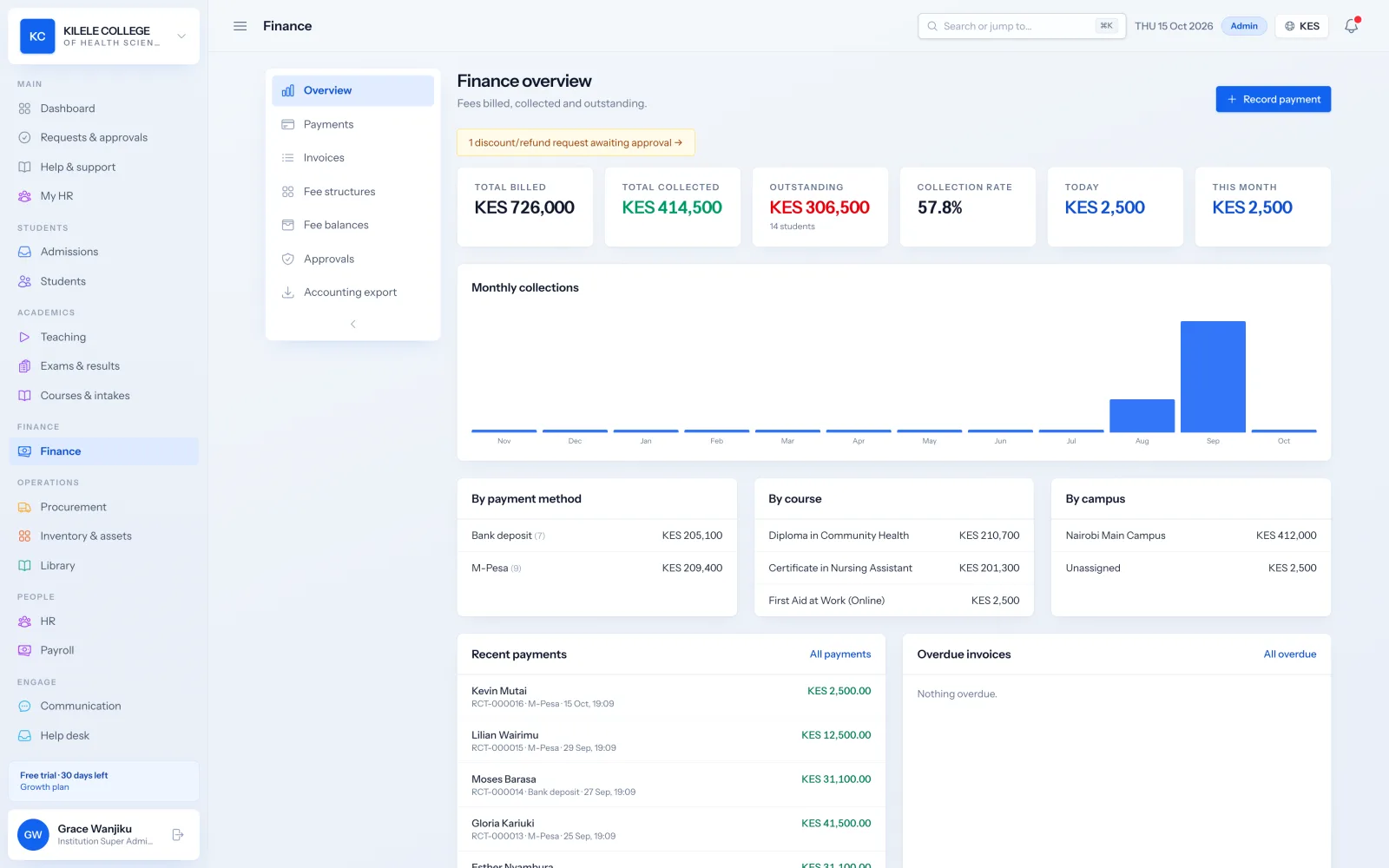
Balances you can trust
Every invoice, payment, reversal and adjustment updates the student's balance immediately.
Payments recorded once
Receipts are numbered and issued as payments are recorded or arrive by M-PESA.
Follow-up made easy
See who owes what, from the largest balance down, and send reminders.
Fees & payments
Programme and intake fee structures
Set a fee structure for each course and intake, with items grouped into billing stages such as "on admission" and "Year 1, Semester 1".
- Fee items with categories such as tuition, examination, registration and accommodation
- Billing stages per year and semester
- Printable fee structures to share with applicants
Fees & payments
Student invoices
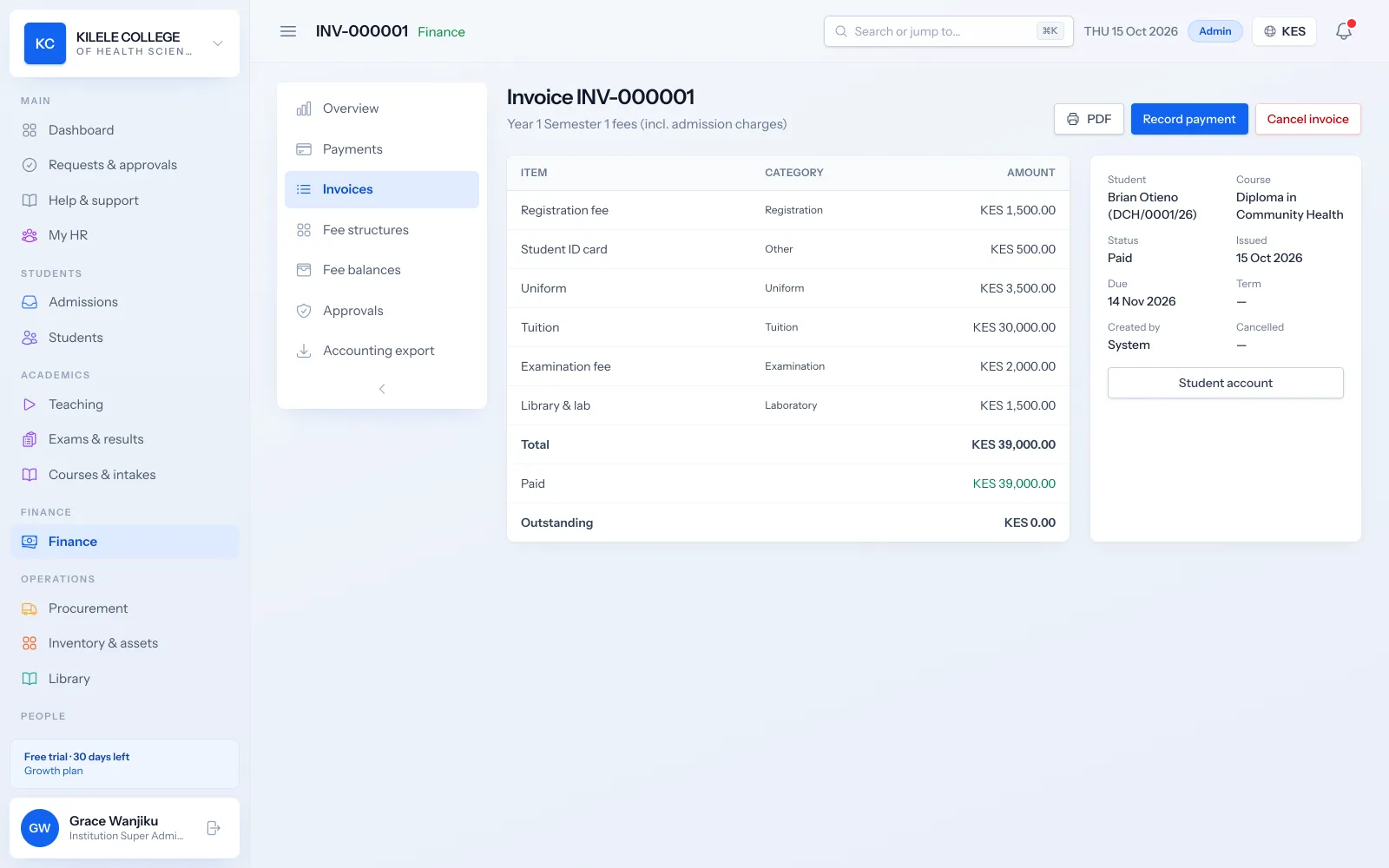
Invoices are raised from the fee structure for each stage, for one student or a whole class, and you can add one-off charges.
- Invoices per stage, individually or in bulk
- One-off charges, for example supplementary exam fees
- Cancelling an invoice with a reason
- Invoices as PDFs on your letterhead
Fees & payments
Payment recording
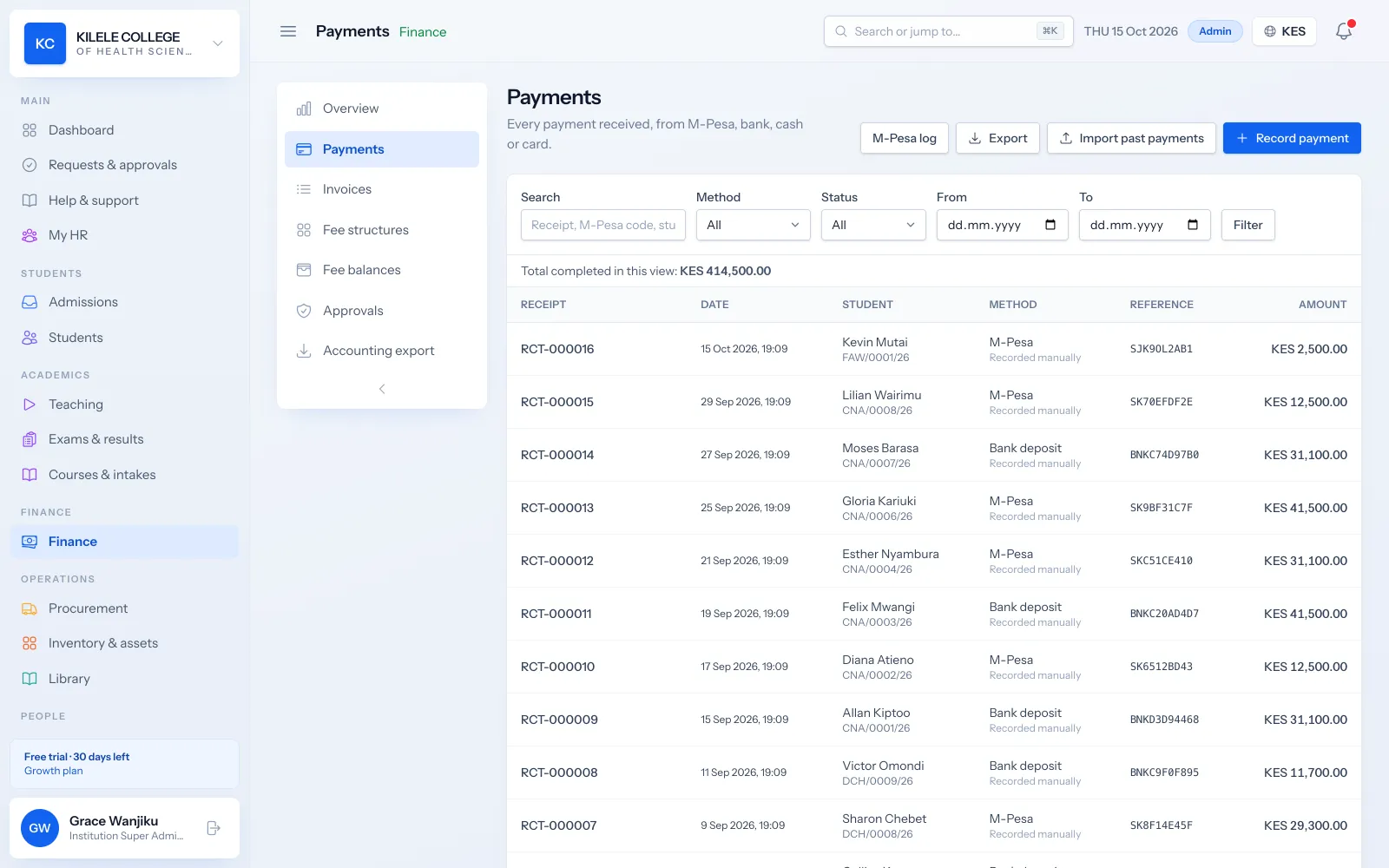
Record payments by M-PESA, bank deposit, cash and other methods with their references. M-PESA and card payments can arrive automatically.
- Payment methods with reference numbers
- M-PESA payments matched automatically (see the M-PESA integration)
- Card payments through your own Paystack account
- Import of past payments when you move to Soma360
Fees & payments
Receipts and statements
Every payment gets a numbered receipt. Students and staff can download a full fee statement at any time.
- Numbered receipts as PDFs
- Fee statements per student
- Students download receipts and statements from the portal
Fees & payments
Outstanding balances
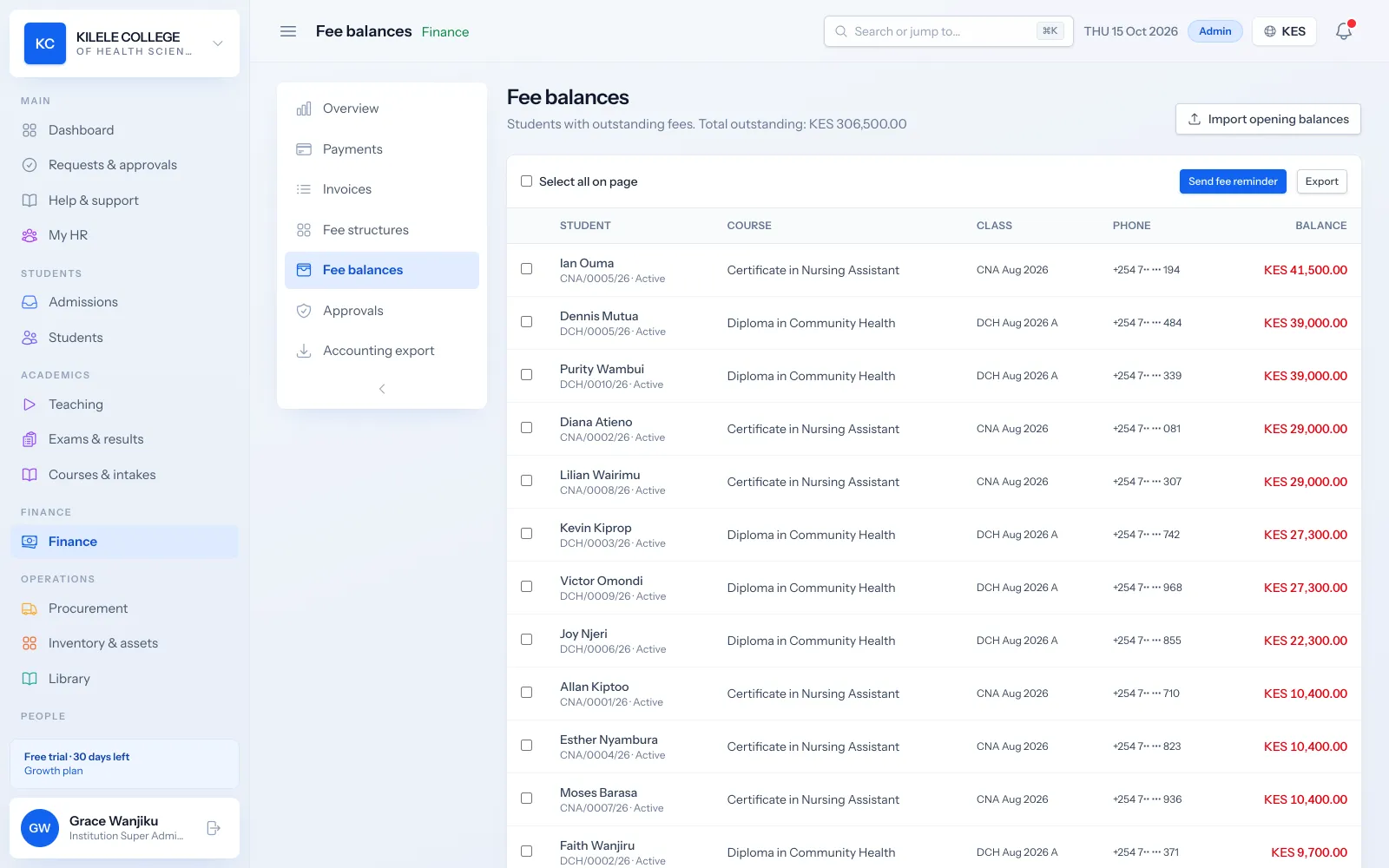
See every student with a balance, largest first. Search by name or admission number, set a minimum balance, and send reminders to selected students or let the weekly reminder do it.
- Fee balances list with search, a minimum-balance filter and export
- Reminders by SMS or email to selected students
- Optional automatic weekly fee reminders
- Opening balances imported from your previous records
Fees & payments
Collection reports
The finance dashboard and reports show what was billed, collected and is outstanding, and accounting exports keep your books in step.
- Collections by month, payment method, course and campus
- Revenue by course and intake, and outstanding fees reports
- Discounts, scholarships and refunds report
- Accounting export as balanced journals (generic, Xero or QuickBooks format)
How it works
Fees & payments, step by step
-
1
Set fees
Create fee structures for each course and intake.
-
2
Invoice
Raise invoices per stage for students or whole classes.
-
3
Collect
Record payments or receive them by M-PESA and card; receipts are issued.
-
4
Follow up
Review balances, send reminders and report on collections.
Who uses it
Built for everyone involved
Finance officers
Invoice, record payments, reverse mistakes and approve adjustments.
Principals and directors
Follow collections and outstanding balances.
Registrars
See a student's fee position when handling requests.
Students
See invoices, receipts and balances, and pay from the portal.
FAQ
Questions about Fees & payments
Are instalment arrangements supported?
Fees are billed in stages defined on the fee structure, such as on admission and per semester, and students can pay any amount towards their balance at any time. Individual payment plans with their own due dates per student are not a separate feature.
How are discounts and scholarships recorded?
As fee adjustments on the student's account: a discount, scholarship or refund with an amount and reason. Adjustments are approved before they change the balance, and they appear in the discounts, scholarships and refunds report.
How are incorrect payments corrected?
A finance officer reverses the payment with a reason. The payment stays on record marked as reversed, the balance is recalculated, and the reversal is recorded in the audit log. The correct payment is then recorded.
Does the system connect to the institution's M-PESA account?
Yes. You connect your own paybill or till through Safaricom Daraja. Payments go directly to your institution, and Soma360 matches them to students by admission number.
Works together with
Related features
M-PESA integration
Your own paybill or till, automatic matching, unmatched payments and STK push.
Learn moreStudent portal
Profile, fee statements, results, announcements, downloads and requests.
Learn moreReporting
Enrolment, collections, balances, attendance and academic reports with export.
Learn moreSee how Soma360 fits your institution
Tell us how your institution works and we will focus the demo on your records, departments and workflows. Prefer to explore alone? Start a 30-day free trial.